Show your auction at an in-person event
Use Event Display when you want guests to follow your auction on a projector or large screen and join in from their phones. It presents the same auction as your regular page, not a separate auction.
Choose the shared-screen appearance
- From Dashboard, open the auction's actions and select Edit Auction.
- Go to Appearance, then select the Event Display tab.
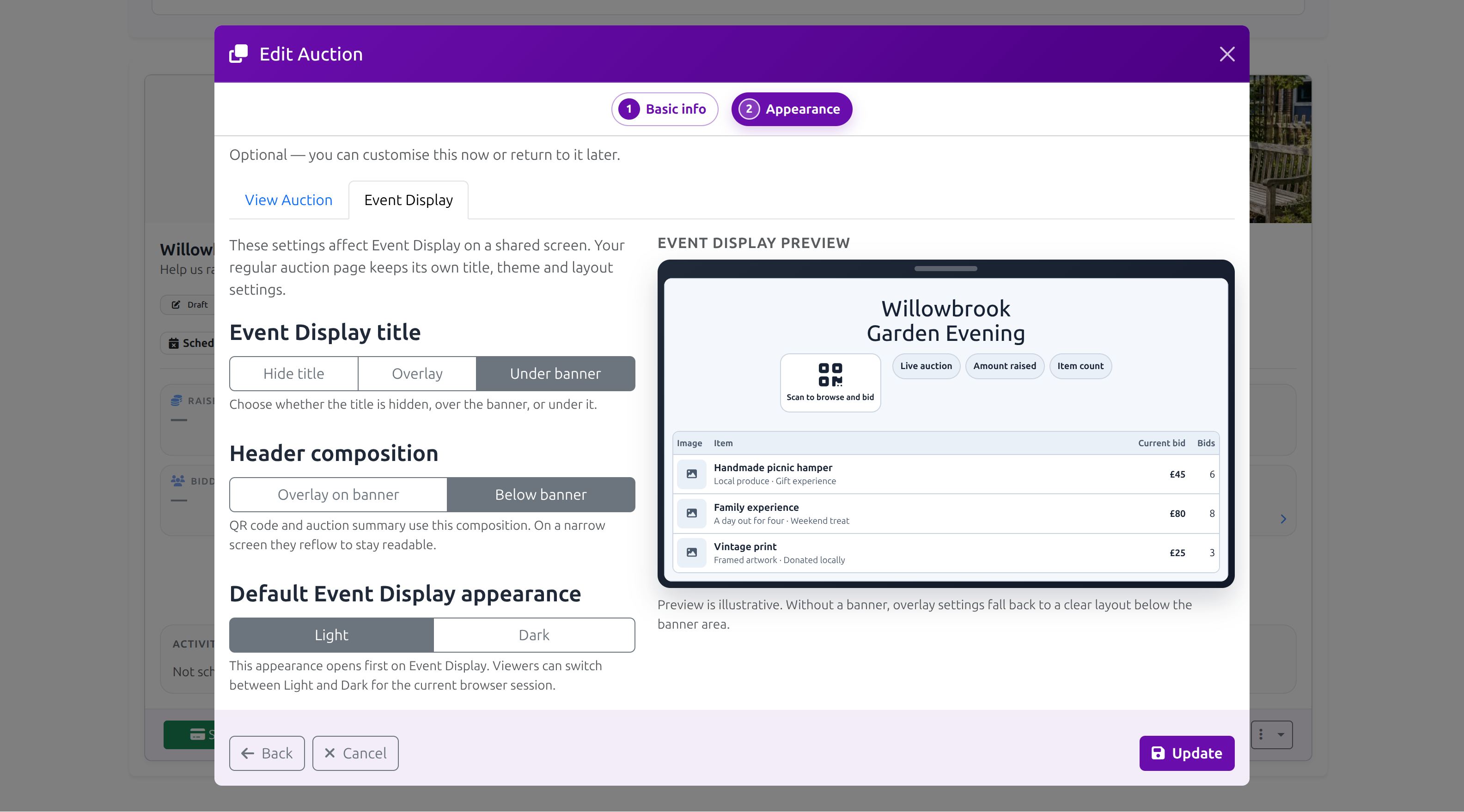
- Under Event Display title, choose Hide title, Overlay, or Under banner. The title choice applies to the expanded header.
- Under Header composition, choose Overlay on banner or Below banner for the QR code and auction summary. If the auction has no banner, an overlay falls below it automatically. On narrow screens, the composition reflows to stay readable.
- Under Default Event Display appearance, choose Light or Dark for the first view on a shared screen. Viewers can switch between them for their current browser session. Your regular auction page keeps its own title, theme and layout settings.
- Check the preview, then save the auction.
Open Event Display at your event
- Open the scheduled auction page and select the Event Display button beside the banner or auction title. The screen icon's label explains that it shows the auction on a projector or large screen.
- Connect the computer to a projector or large screen. Use the browser's full-screen option to give the auction more room.
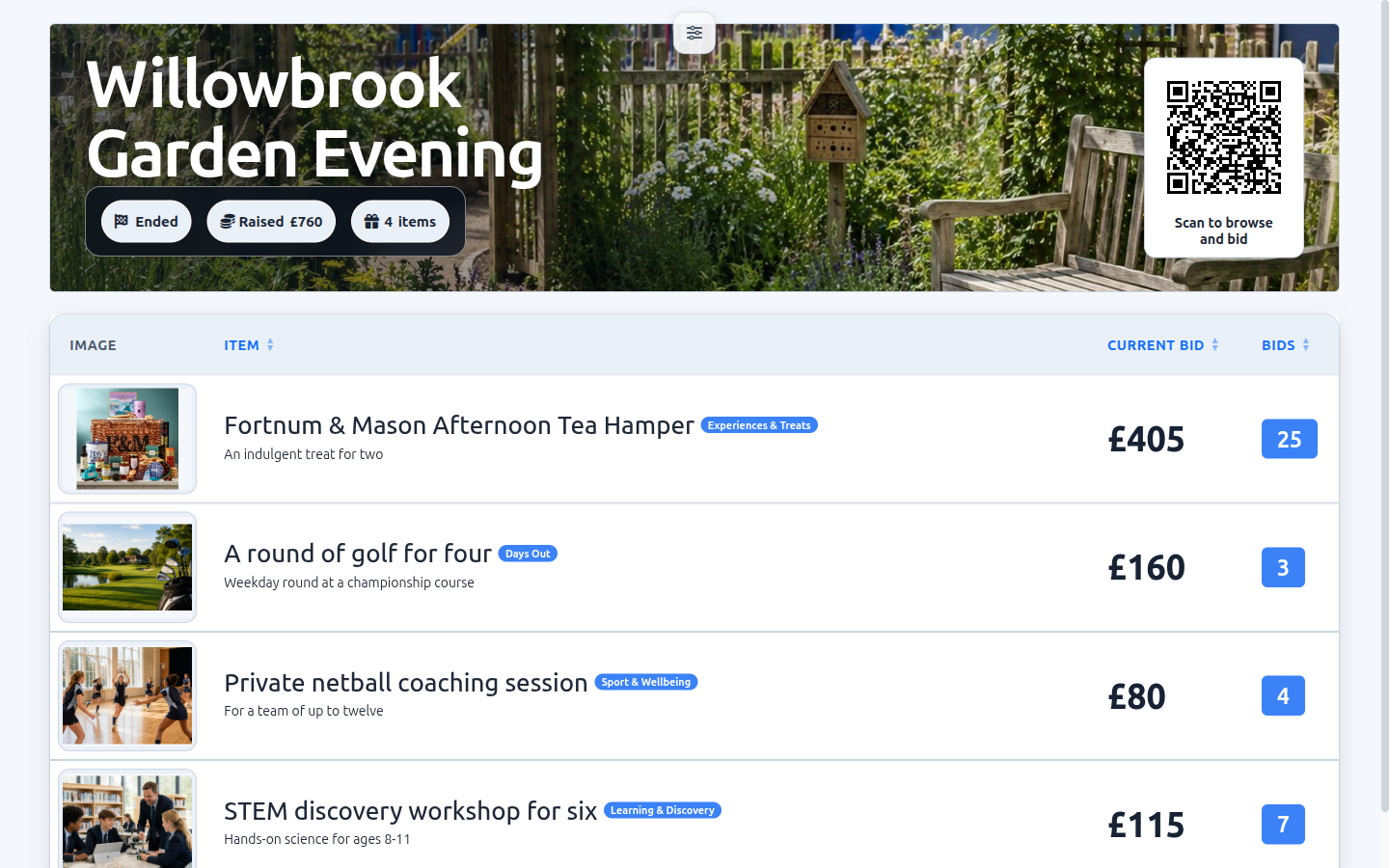
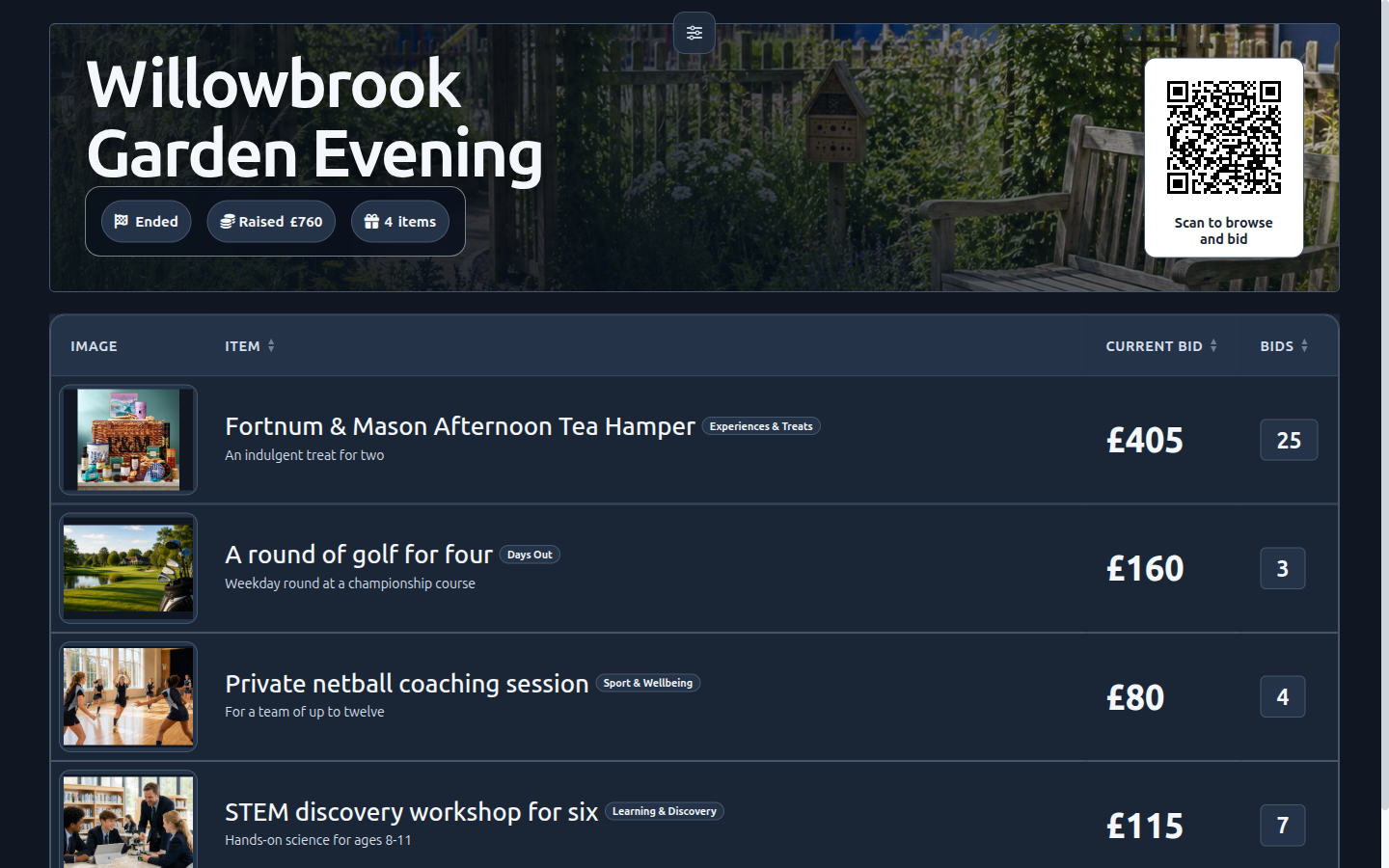
- The header brings together the QR code and its participation instruction with the auction status, raised total, countdown and item count. Guests can scan the code to open the same auction on their phones and browse or bid when bidding is open.
- Item photos, current bids and bid counts stay visible. During live bidding, the display checks for updates every few seconds without reloading. Current bids, bid counts and the raised total update in place, and the selected sort order is maintained. Lots may move when current-bid or bid-count sorting is active. A brief notice highlights bidding activity without identifying the bidder. Check the table for the latest values; the notice is informational. Guests can use the available sorting controls to follow the lots.
Light appearance
Dark appearance
Use the presentation controls
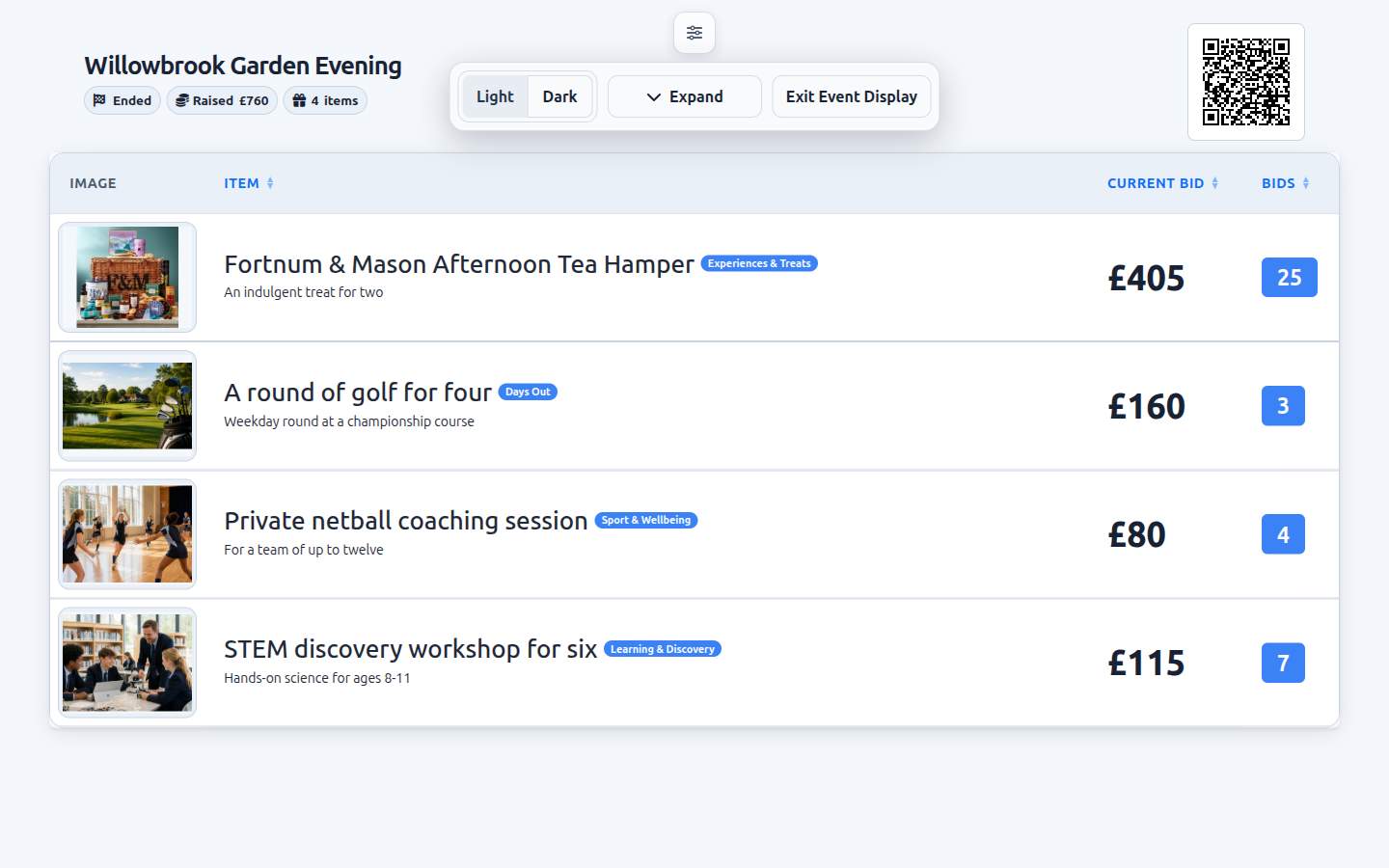
Move the pointer to the top edge or hover over the small sliders handle at the top of the screen to reveal the controls. On a touch screen, tap the handle. Click or tap outside the panel to close it immediately. Using a control inside it does not close the panel or pin it open: it stays open while you hover over or use it, then hides about 2.5 seconds after you move away and leave it idle. On a computer, the mouse pointer is hidden while the panel is hidden and comes back as soon as you move the mouse. The panel floats over the auction without taking space from the items.
Choose Light or Dark to suit the room and screen. The saved default in the auction's Appearance settings is used when Event Display opens; a change here is remembered for the current browser tab session, without changing that default, the regular auction page or what bidders see.
To give the lots more room, open the presentation controls and select Collapse header. The compact bar hides the banner entirely and always shows the auction title, even if you chose to hide it in the expanded header. The status, raised total, countdown, item count and a smaller QR code stay visible above the lots.
Open the presentation controls and select Expand header to restore the full header and your chosen title treatment.
With the header collapsed, the sliders handle stays in the same top-centre position as it has in the expanded view. On wide screens, the compact title and QR keep the same left and right insets as the expanded header; on narrow screens, the content reflows to stay visible. The panel continues to float over the presentation without creating another controls row, while the compact title, summary and QR remain clear of it. Your header choice is remembered for this auction in the current browser tab session, including when you sort, reload or receive live bid updates. It does not change the auction's saved appearance settings.
With a keyboard, Tab to the sliders handle to open the panel. It stays open while keyboard focus is in the controls; press Escape to close it. To collapse or expand the header, Tab to the Collapse header or Expand header button inside the panel and press Enter or Space.
Live bids at a glance
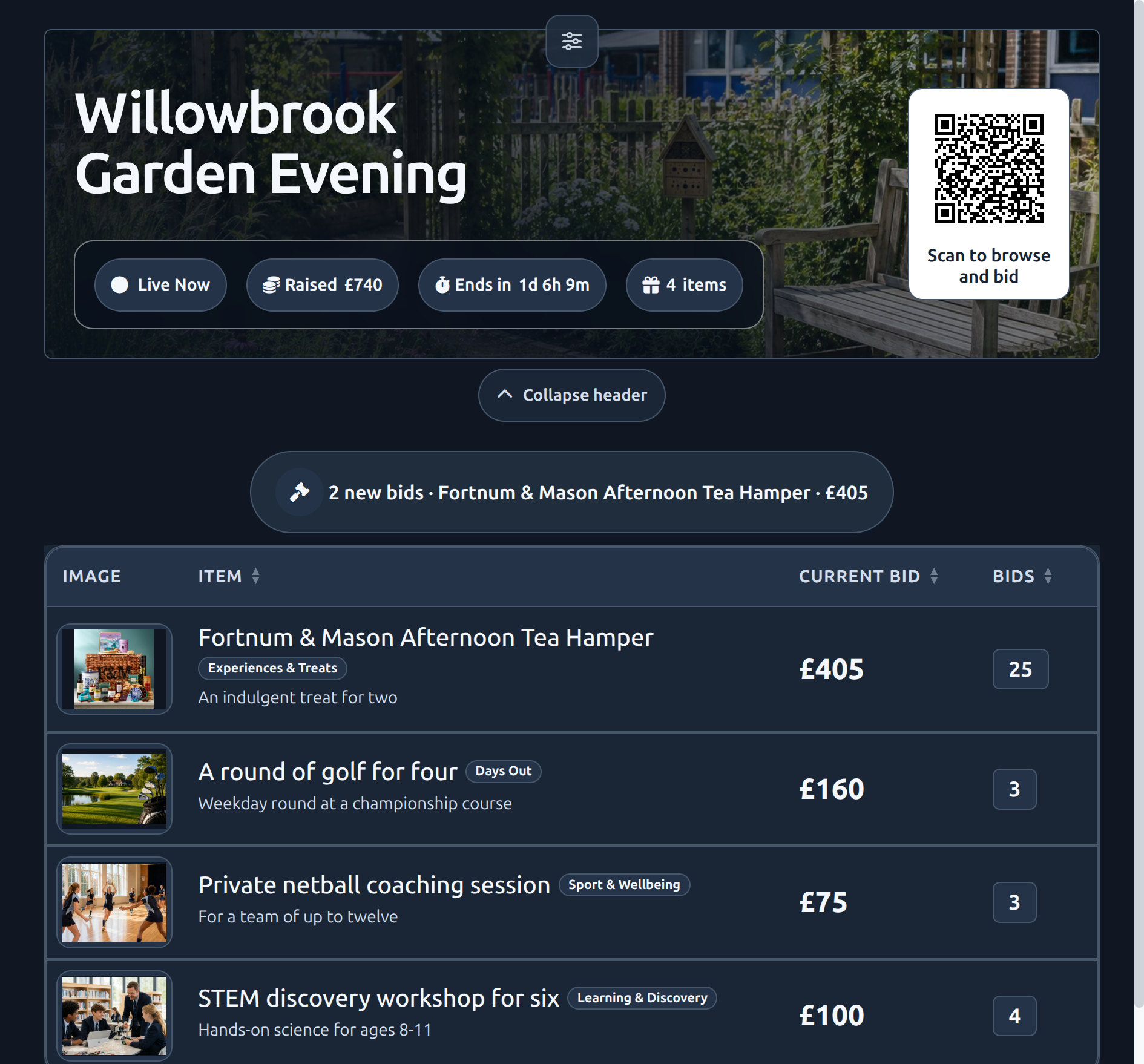
Select Exit Event Display in the panel to return to the regular auction page. Event Display is designed for a shared screen: it shows public auction and bidding information, including item photos and current bids, without organiser controls, bidder-specific maximums, donor contact details or private payment status. Keep auction-management work on a separate device.
The auction is public after it has been scheduled, but bidding only opens at its start time. See Schedule and launch if the dates or state are not yet clear. For links, downloadable QR codes and flyers, see Promote your auction.