Share your auction link
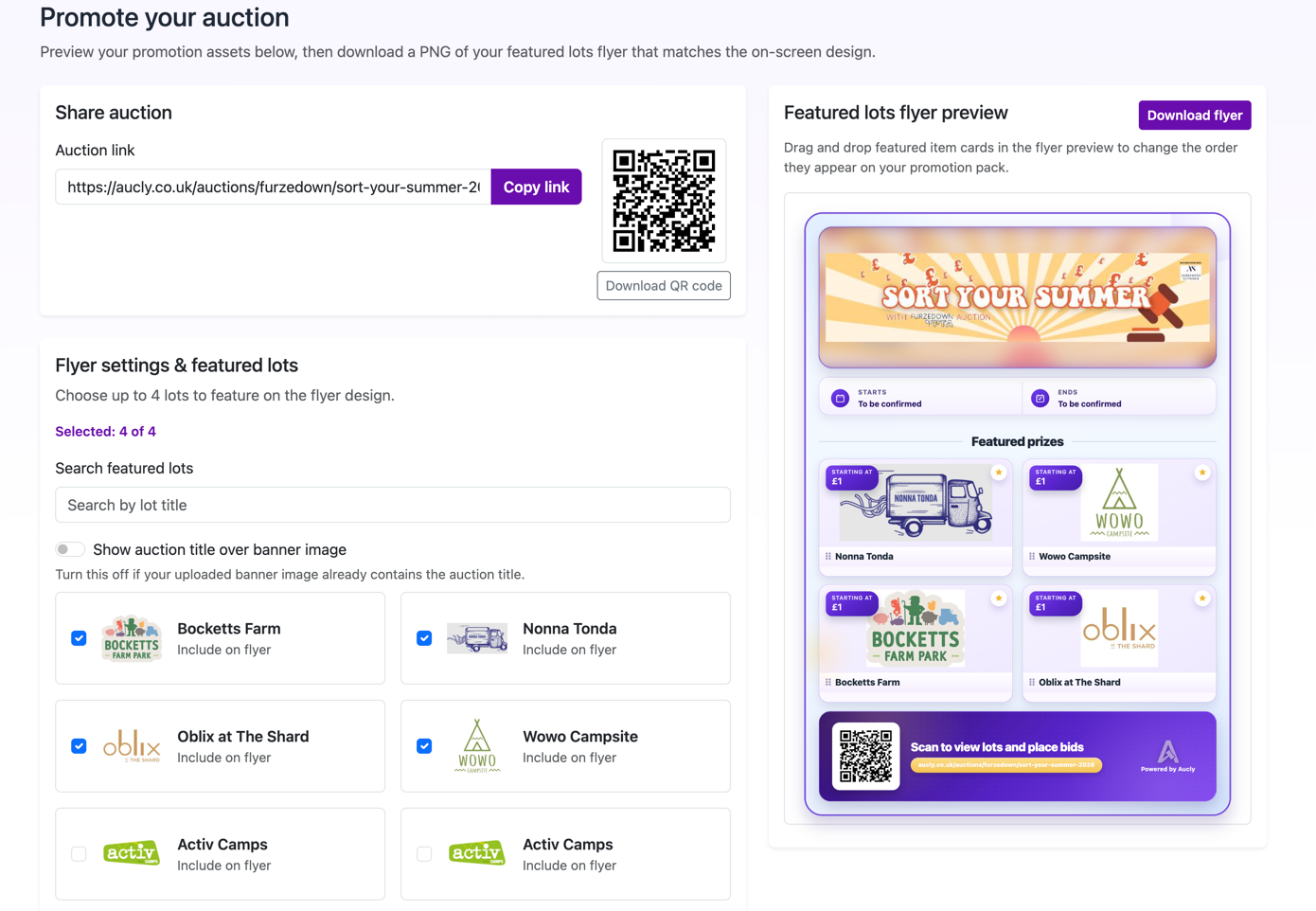
Open Promotion pack from the auction actions when your item titles, images and dates are ready. Under Share auction, the Auction link is the public address for this auction. Select Copy link, then use it in emails, newsletters and social posts.
Aucly does not add auctions to a searchable marketplace. Display on Auction Hub adds this auction to your organisation's public hub; a tick beside the action means it is displayed. If you remove it from the hub, the direct auction link is still public and continues to work.
Download the QR code
Select Download QR code to save a code for the same auction link. After placing it in printed material, scan the finished version with a phone to check that it opens the intended auction and has not been cropped or made too small.
Build the Aucly flyer
- Under Flyer settings & featured lots, select Include on flyer for up to four lots.
- In the Featured lots flyer preview, drag the lots in the preview to choose their order.
- Turn on Show auction title over banner image if the banner does not already include readable wording.
- Check the preview, then select Download flyer.
If the auction has no items, return to Manage items first. Download the flyer again after changing an item's title, image, or order so that you do not share an older version.
Show your auction at an in-person event
For a dinner, fair or fundraiser, set up Event Display to show the same auction on a projector or large screen and help attendees join from their phones.