AI fundraising assistant · Limited-access preview

Run your fundraising auction with AI

Spend less time organising and more time fundraising. Connect Aucly to your AI assistant to create your auction, manage donated prizes, understand bidding activity and simplify the administration that follows.

Simply ask for what you need, in your own words.

  • Create your auction from a conversation or spreadsheet, and add your prize photographs.
  • Discover opportunities to improve bidding and promote your prizes.
  • Simplify payment collection and prize distribution.

AI connections are in limited-access preview. Supporters still browse and bid on your normal Aucly auction page.

One assistant, across your auction

  1. Plan your fundraiserSet a goal and plan your event
  2. Create your auctionTurn prizes and photos into lots
  3. Get ready to launchCheck dates, payments and requirements
  4. Understand bidding activitySee what is working and what needs attention
  5. Promote your auction intelligentlyRecord a push and review the response
  6. Collect payments and distribute prizesReview payments, winners and prize details
Live auction insight

Understand the impact of your promotion

See how your auction responds to newsletters, WhatsApp messages and social media posts. Ask your AI assistant to analyse bidding activity and help you decide when to promote your auction again.

Illustrative auction data

Visits and bids across the final week

Bidding closes Sunday at 8pm. All times UK time.

  • Visits
  • Bids
Auction visits and bids around two marketing messages One auction week, Monday midnight to Sunday 8pm. Purple visits rise from 20 to 300 across the week, with sharper rises after a school WhatsApp message on Monday at 7pm and a school newsletter on Thursday at 8am. Green bids rise from 2 to 22, with larger increases on Tuesday and Thursday. The same data is available in the table below.
Auction visits and bids around two marketing messages One auction week, Monday midnight to Sunday 8pm. Purple visits rise from 20 to 300, with sharper rises after a school WhatsApp message on Monday at 7pm and a school newsletter on Thursday at 8am. Green bids rise from 2 to 22, with larger increases on Tuesday and Thursday. The same data is available in the table below.

Scroll the chart sideways to see the full week.

View the data
Visits and bids for one auction week, with two marketing markers.
Time Visits Bids
Mon 00:00202
Mon 12:00454
Tue 00:00 — after the WhatsApp message19012
Tue 12:001609
Wed 00:00905
Wed 12:00754
Thu 00:00855
Thu 12:00 — after the newsletter24015
Fri 00:0021012
Fri 12:001508
Sat 00:0017010
Sat 12:0022014
Sun 00:0026018
Sun 12:0028020
Sun 20:00 — bidding closes30022

Marketing markers: School WhatsApp, Monday 7pm; School newsletter, Thursday 8am. Bidding closes Sunday at 8pm. All times UK time.

AI insights

“Activity increased following both marketing messages. With bidding closing on Sunday, consider sharing a Saturday reminder highlighting prizes that haven’t yet received bids.”

See how promotion notes work
Plan and build

Create your auction with confidence

Build a private draft at your own pace, with help from your AI assistant. Nothing is published or open for bidding while you work on it.

First steps

Plan your fundraiser

Whether you’re organising your first school auction or an annual charity fundraiser, your AI assistant can help you get started. Discuss your fundraising goal, plan your event and work out what you need to do next.

Try asking

“We’re organising a primary school summer fair and want to raise £3,000 for playground equipment. Help us plan our auction.”
Prize admin

Turn donated prizes into an auction

Upload your existing spreadsheet of donated prizes, attach photographs or simply describe your prizes in your own words. Your AI assistant can help create compelling descriptions, suggest starting bids and match photographs to the right prizes, reducing manual administration. If a photo match is unclear, nothing is attached automatically.

Try asking

“Here’s our spreadsheet of 40 donated prizes and the photos we’ve collected. Create a private auction draft with descriptions and suggested starting bids.”

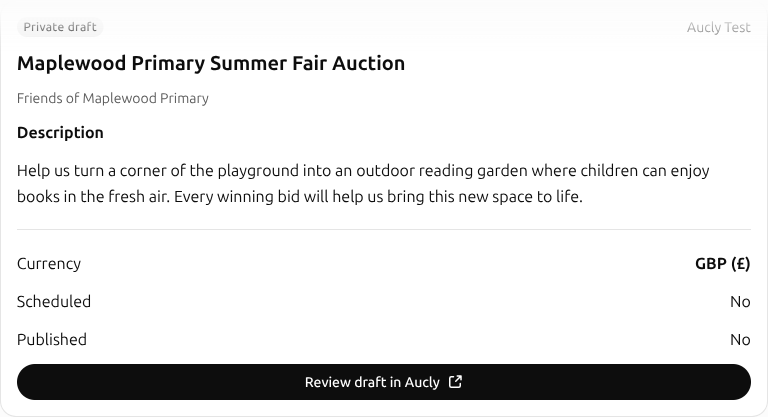
ChatGPT shows the private Maplewood Primary Summer Fair Auction draft, its outdoor reading garden appeal, and a button to review the draft in Aucly.
Fictional Test auction · ChatGPT capture A private draft, ready to review The assistant has created the draft in Aucly. It is not open for bidding or visible to supporters.

Build on experience

Build on previous auctions

Running another fundraiser? Ask your AI assistant to find prizes from your organisation’s previous auctions, copy them into your new auction and help update their descriptions. There’s no need to enter everything again. Check that donation details, restrictions and collection arrangements are still current.

Try asking

“Copy the pottery workshop and restaurant vouchers from last year’s summer auction into this year’s draft and help update their descriptions.”

Launch and run

Get more from your live auction

Use real bidding activity to see what needs attention. Your assistant can explain what it finds and prepare changes, but you approve anything that matters.

Readiness

Get ready to launch

Find out exactly what you need to do before your auction opens for bidding. Your AI assistant can check your auction, help prepare your schedule and guide you through your payment collection options. Card and bank details stay in Aucly’s secure payment setup, and anything that affects a live auction needs your approval.

Try asking

“Is our auction ready to go live? We want bidding to open Monday morning and finish Sunday at 8pm.”

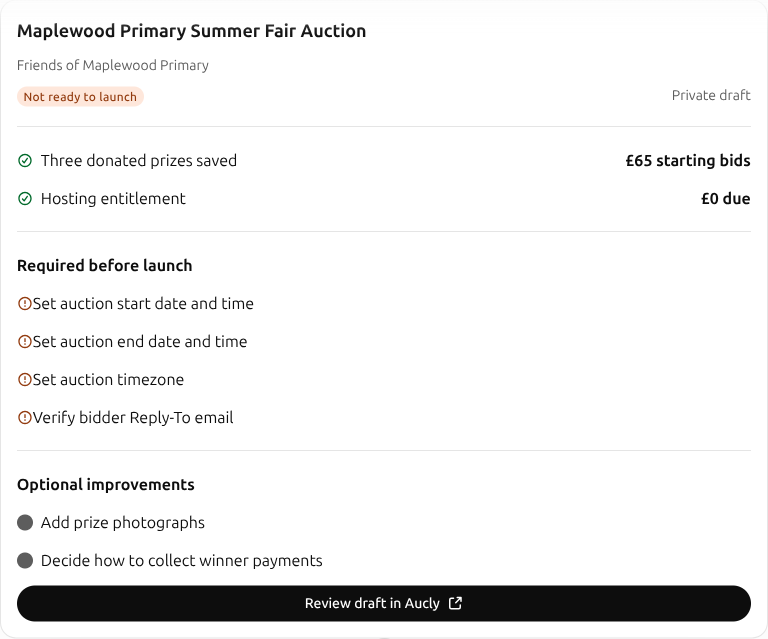
ChatGPT shows three prizes saved for the Maplewood auction and separates launch requirements, such as bidding dates, from optional improvements.
Fictional Test auction · ChatGPT capture Requirements before launch The assistant separates what must be done from what would simply improve the auction.

Live performance

Understand live performance

Get answers about your auction using real bidding data. Find out which prizes are attracting the most interest, which are being overlooked and where you might want to focus your efforts.

Try asking

“How is our auction performing? Which prizes should we promote before bidding closes?”

Distinctive live-auction help

Give overlooked prizes a second chance

Some fantastic prizes can easily get overlooked in a large auction. Your AI assistant can identify prizes receiving few or no bids and suggest moving them into more prominent positions, while keeping your most popular prizes visible. Review the suggested order and approve the changes when you’re happy.

Try asking

“Which prizes have no bids and are near the bottom? Suggest a better order to give them more attention.”

Catalogue changes need a separate permission, form part of the limited-access preview and may not be available in every workspace.

Distinctive live-auction help

Know when to promote your auction

Tell your AI assistant when you’ve promoted your auction through WhatsApp, newsletters, email or social media. See those activities alongside visits and bids on your auction timeline, understand how activity changed and get suggestions for when another reminder might be worthwhile.

Try asking

“We sent a WhatsApp reminder to parents last night. Add it to the activity timeline — did bidding pick up, and when should we remind them again?”

Marketing timeline notes are being rolled out gradually and may not be enabled for every organisation yet.

Finish and follow up

Make post-auction administration easier

When bidding ends, ask what has been paid, what is outstanding and which winners still need their prize details.

After the auction

Collect payments and distribute prizes

When bidding finishes, ask your AI assistant how much you’ve raised, who still needs to pay and which paid winners still need to be sent their prize details. Prepare payment reminders and prize collection emails without having to work through every winning bid individually.

An authorised organiser approves every message before it is sent, and sending an email does not mark a payment as received or a prize as collected.

Try asking

“Who still needs to pay? Help me prepare a reminder for them.”

Limited-access preview

Connect Aucly to ChatGPT

Connect your Aucly account to ChatGPT and start managing your fundraising auction through conversation. This is a limited-access preview; other AI assistants are planned but not yet supported, and Aucly is not yet listed in an AI marketplace.

How to connect
  1. In your assistant’s settings, add a custom app or remote MCP server. The exact menu name depends on your assistant, plan and workspace.
  2. Use this server URL: https://aucly.co.uk/mcp
  3. Choose OAuth if you are asked how to sign in, then Sign in to Aucly when prompted.
  4. Review the permissions the assistant is requesting, approve only what you need, and choose the organisation you want to work with.

Once connected, start a new chat and ask what you can do. If your assistant cannot add custom connections, use Aucly directly in the browser instead.

Before you connect

  • You need an Aucly organiser account and permission to manage the organisation.
  • Check that your assistant’s plan and workspace allow custom remote MCP connections.
  • Do not share passwords, card details or unnecessary personal information in chat.
  • You can review or revoke access later from Connected apps.
Organiser control

Your auction. Your decisions.

Let AI help with the hard work while you stay in control of your fundraiser.

Private by default

New auctions start as private drafts until you launch them.

Approval before change

Scheduling, going live, reordering lots and sending messages all need permission and your approval.

Limited permissions

The assistant sees only what you grant. Review or revoke access at any time, and read the Aucly privacy policy.

No AI account for bidders

Supporters use your normal Aucly auction page, without ChatGPT or another AI assistant.

You can manage every auction without an AI assistant at any time. See how Aucly works.

Common questions

What organisers ask about AI

Clear answers about what the assistant can do, what it cannot do and how to stay in control.

Do I need technical knowledge to use AI with Aucly?
No. You talk to the assistant in everyday language. Connecting is a limited-access preview, so you may need help from whoever manages your assistant workspace.
Can I upload a spreadsheet of donated prizes?
Yes, where your assistant supports file attachments. Aucly reads CSV or Excel prize lists, matches varying headings and shows a preview before saving. Rows needing attention are flagged, not guessed.
Can it help while bidding is live?
In the limited-access preview, it can review recorded bid counts, catalogue positions, time remaining and low- or zero-bid prizes where available. It can suggest a catalogue-order change for approval, but cannot promise more bids.
Will the assistant change my auction without asking?
No. Consequential actions are previewed and need an authorised organiser’s approval. Separate permissions cover scheduling, going live, catalogue order, messages, payments and timeline notes.
Do my supporters need ChatGPT?
No. Supporters browse and bid on your normal Aucly auction page from any device. They do not need an AI assistant or a provider account.
Does the assistant send WhatsApp messages or social posts?
No. It never sends WhatsApp or social posts. You can record a completed promotion on the activity timeline where that gradual rollout is available, so visits and bids can be reviewed around it.
Can it send payment requests and prize-detail emails?
It can prepare separate payment-request and prize-details email previews and show the recipients. Nothing is sent automatically; an authorised organiser approves each preview. A sent email is not proof of payment or prize collection.
Can I install Aucly from an AI marketplace?
Not yet. Aucly is available through a limited-access preview using a remote MCP connection. We expect to publish official listings in major AI marketplaces, including OpenAI’s and Anthropic’s, and will add links here once listings go live.
What does it cost?
Connecting Aucly to a compatible AI assistant is free; we do not charge extra for the integration. Aucly’s normal plan and auction fees still apply, and your AI provider may charge for its own subscription. Check current Aucly plans and fees before you start.
How do I disconnect an assistant?
Sign in to Aucly, open Connected apps from your profile and choose Revoke access. Removing Aucly from your assistant’s settings alone does not revoke access on the Aucly side.

Ready when you are

Start with the auction you need to run

Build a private draft in Aucly today. Connect a compatible assistant when it suits you, or keep everything in the browser.